Check-in runs in the browser on any device with a camera. There is no separate app.
Open the scanner
- Open the event from Organizer → Events.
- Under Attendees, tap Check-in. On the guest list, Open check-in does the same.
- Allow camera access when prompted.
The scanner opens full screen. Door staff with the Scanner team role can bookmark this page: after signing in, it goes straight to the camera.
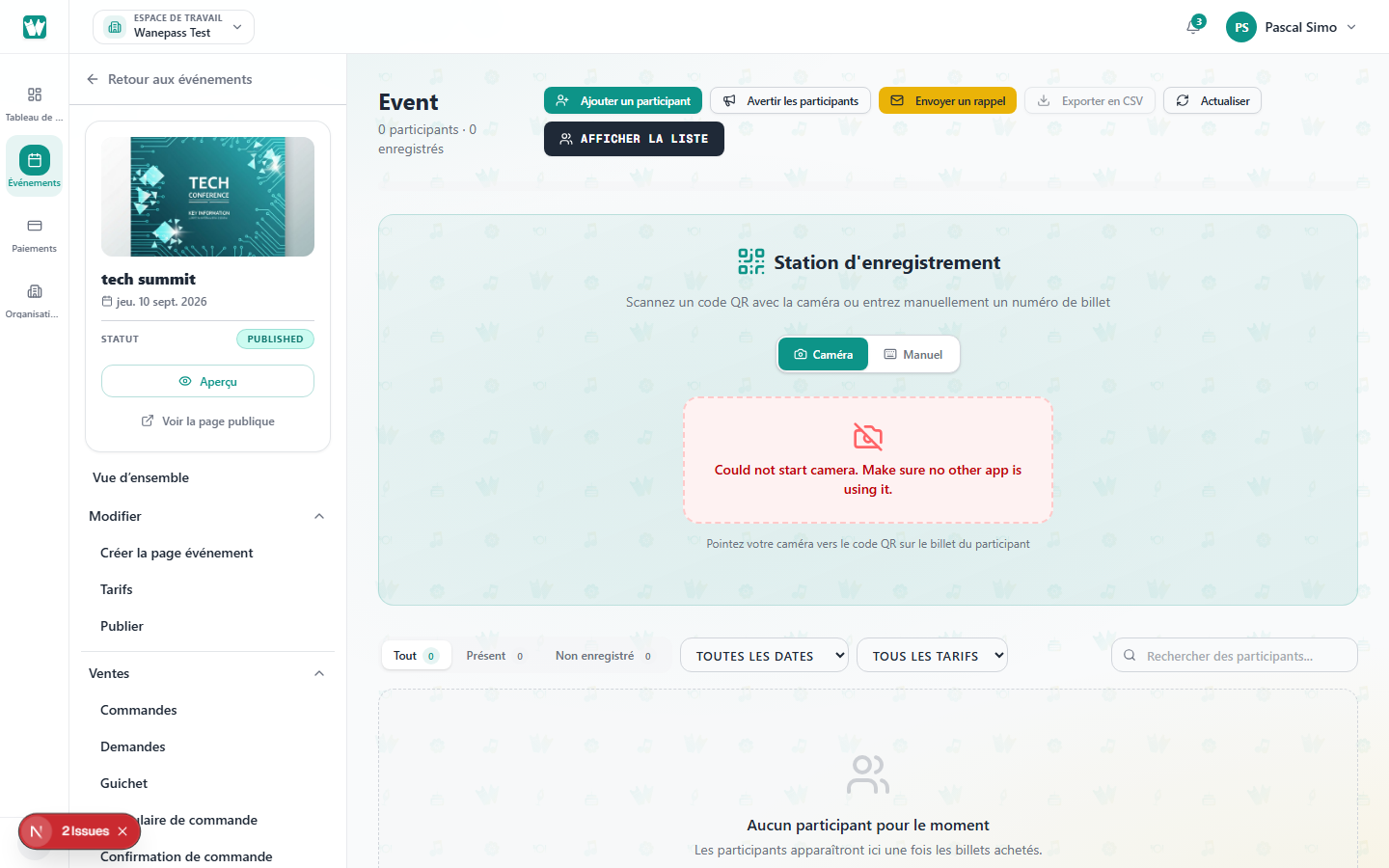
Read the result
Fit the QR code inside the frame. Each scan fills the screen with a color you can read from a distance:
| Color | Meaning |
|---|---|
| Green | Valid. The guest's name and ticket type are shown. |
| Amber | Already checked in. Shows when, and which staff member admitted them. |
| Red | Not valid for this event: unknown code, refunded, transferred, or another event. |
The phone also vibrates with a different pattern for each result. Turn the beep on or off with the speaker button at the top. The screen returns to the camera after a few seconds, or tap Scan the next ticket.
Groups
When one person registered several guests, scanning any of their tickets shows Group · 1 of 4 checked in. Tap Check in the other 3 guests to admit the rest at once. Each guest still gets their own check-in record. See Group registration.
Laptop and USB scanners
On a laptop the scanner sits on the left and a live list of recent check-ins on the right. A USB barcode scanner works out of the box: the USB scanner ready field stays focused, so just scan.
Tips for event day
- In a dark venue, use the flashlight button if your phone supports it.
- The live counter at the top shows how many guests are in (organizers and admins).
- If a code will not scan, use Manual entry. See Manual check-in.
- No signal at the venue? Download the offline list from the settings button before doors open.
- A checked-in ticket cannot be transferred. See Transferring a ticket.