Each published event has its own management area. Open an event from Organizer → Events to see the dashboard.
Main sections
| Section | What you do there |
|---|---|
| Overview | Summary, quick stats, and publish status |
| Tickets | Principal: types, pricing, currency, and payment methods. Promotions: automatic discounts and codes |
| Attendees | Guest list with search, filters and group labels; Check-in opens the full-screen scanner |
| Requests | Approve or decline RSVP requests (if enabled) |
| Orders | Order history, mark bank transfers paid |
| Reports | Sales, event page visits, and check-in analytics — revenue, channels, tiers, scan results |
| Emails | Send or schedule emails to attendees |
| Feedback | Send post-event surveys and review ratings, NPS, and comments |
| Settings | Edit event details, refund policy, privacy |
On a phone
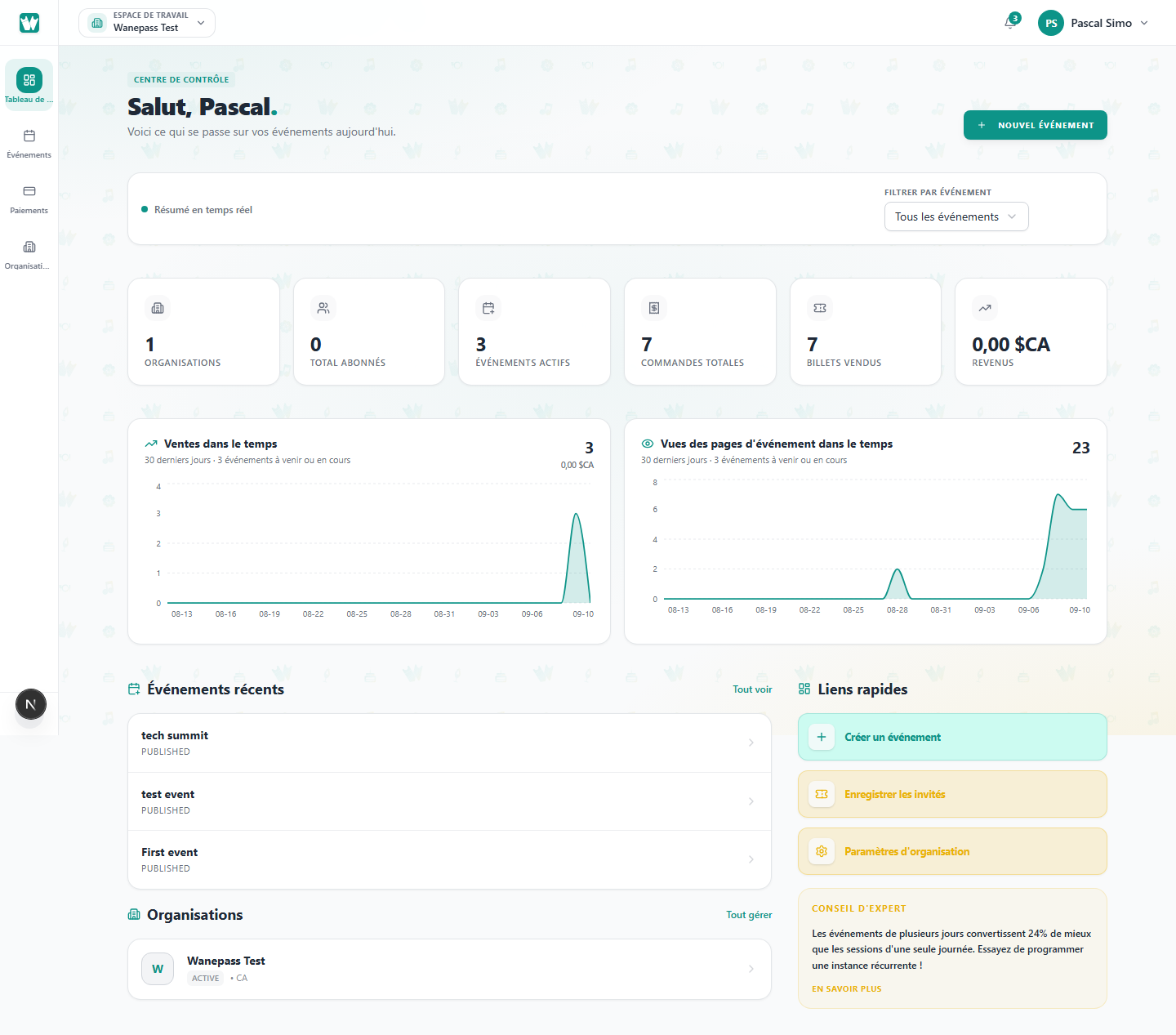
The bar at the bottom of the screen switches between Dashboard, Events, Payments, and Organizations. Inside an event, the menu button at the top opens the event's sections. On a laptop the same links are in the left rail.
Tips
- A new event starts as a draft from the short create form and stays off the public site until you publish. See Creating your first event.
- Use Attendees → Check-in for QR scanning. It opens a full-screen scanner; there is no separate app. See Scanning tickets at the door.
- Let one person register several guests, or require one ticket per person, with Group registration.
- Discounts and codes are under Tickets → Promotions. See Automatic event discounts and Promo codes and access codes.
- Open Reports for page visits, sales trends, channel breakdown, and check-in progress.
- Open Feedback after the event to request reviews from confirmed attendees.
- For recurring events, filter by instance before sending emails or exporting lists.